

Running a 7B or 8B local LLM on a 16GB RAM machine sounds simple, but many setups end up stuck in swapping, timeouts, and “the GPU is idle” confusion. The failure mode is predictable. Treat memory fit, quantization, context length, and offloading as one system, then confirm GPU usage before you tune anything else.
This guide focuses on an approach that stays stable on 16GB systems. We will center on Ollama, GGUF quantization, and model offloading behavior so you can get usable tokens without falling into a crash loop.
Start with the real constraint: fit into memory before you optimize speed
Local inference is dominated by memory, not raw compute. A 7B or 8B model can run on 16GB system RAM when you use a quantized GGUF model, and when you keep the context window within what the machine can sustain. The guiding idea is simple: VRAM or unified memory determines whether the model can stay on the GPU, while system RAM offloading is a safety fallback that often makes generation dramatically slower when it triggers often.
A practical baseline is to use the Ollama and llama.cpp assumptions around GGUF quantization. Q4_K_M is a common starting point because it reduces memory footprint versus higher precision formats, and it is a typical entry tier for consumer setups. Size the model so it has headroom, then leave room for KV cache and runtime overhead. This helps you avoid the cliff where performance collapses once layers spill to CPU.
For deeper background on the hardware requirements side, see Local AI Hardware Requirements (2026): Complete Guide, and for an Ollama-focused walkthrough and troubleshooting patterns, see How to Run an LLM Locally: 13 Steps, 90 Min (2026).
Pick a safe 7B to 8B model and a quantization that matches 16GB RAM
If “no crashes” matters more than maximum quality, pick a mainstream 7B or 8B instruct model and use a quantization tier that fits. The Tech Insider source describes Q4_K_M as the practical starting point for 7B to 8B on consumer setups, and it highlights a general rule: do not plan for a setup that just barely fits, because KV cache and overhead can push you over the edge.
On the model side, Ollama makes it easy to start from a known default. Pulling llama3.1:8b loads a quantized variant for the weights, which is the right direction for this memory tier. If you need to be explicit about quantization tags, you can do that in Ollama, but start with a default that is known to work, then refine once you have stability.
If you want a second perspective on quantization tradeoffs, Kunal Ganglani’s VRAM math guide is a good sanity check for how KV cache headroom interacts with context length: Local LLM Hardware Guide 2026: VRAM, GPUs, and Setup [Tested].
Configure Ollama for stability: context first, then GPU offloading
Most “crashes” are memory thrash. Control two things early: the context window and the split between GPU and CPU layers. Ollama’s context window drives KV cache consumption. If you raise context too aggressively on a 16GB system, you can force CPU offload even when the model initially seemed to fit.
Start with a conservative context window, then increase only after you verify GPU utilization is active and memory usage stays within bounds during generation. Ollama also provides a lever for offloading: you can tune behavior in a Modelfile using the num_gpu parameter. When runs become slow and CPU heavy, adjust this split and recheck behavior.
Install and run a known-good baseline with Ollama
Install Ollama with the official script, then pull one baseline 7B to 8B model. Run a short chat session and observe the system before you change anything else.

Install Ollama (Linux or macOS):
curl -fsSL https://ollama.com/install.sh | sh
Pull a safe 8B starting point:
ollama pull llama3.1:8b
Run it:
ollama run llama3.1:8b
Verify GPU offloading (or lack of it) before you judge performance
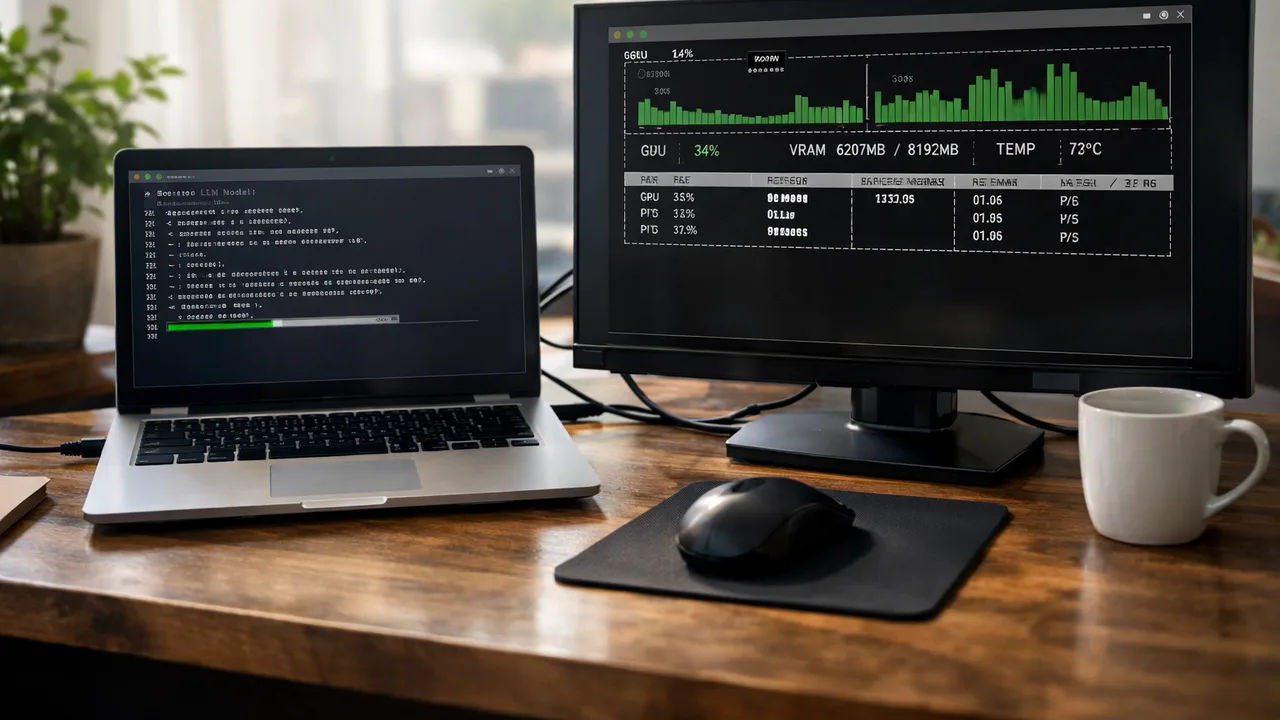
If generation is slow or the system starts swapping, you need to know whether the model is using the GPU. Tech Insider’s recommended check is to run Ollama and then, in a second terminal, watch GPU utilization and memory usage during generation with nvidia-smi. You want utilization to rise and memory usage to match the expected model footprint during output generation.
In a second terminal:
nvidia-smi
If GPU utilization stays near idle while CPU work ramps up, the likely cause is that layers are being offloaded to CPU too aggressively, or the model does not fit within your effective memory constraints. At that point, the fix is not waiting longer. Reduce context, adjust offloading settings, and move quantization to a tier that fits better.
When 16GB RAM is tight, adjust three knobs in this order
When your machine starts to crawl or swap, the response should be deterministic. The Tech Insider source explains that performance can collapse when even a small portion of the model spills from GPU to CPU. That means you should remove the conditions that trigger spilling, and start with context length, since KV cache grows with conversation history.
Order of operations:
- Lower context window so KV cache does not push memory usage into the offload zone.
- Ensure you are on the right quantization tier, typically Q4_K_M for 7B to 8B as a stability first default.
- Tune model offloading using a Modelfile and
num_gpu, so you do not create a CPU heavy split that kills token throughput.
If you want a Modelfile example pattern, Tech Insider references using a Modelfile that sets num_gpu and num_ctx. Treat it as a template, but do not jump straight to large contexts on 16GB machines.
Use Open WebUI only after the model is stable
A browser UI is useful, but it adds overhead and makes memory pressure harder to debug while you are still tuning the model configuration. A practical sequence is to confirm that CLI inference works with acceptable speed and stable resource usage, then add Open WebUI in Docker once your baseline is safe.
The Tech Insider source includes a working Open WebUI Docker run command that connects to Ollama. Keep UI changes separate from model tuning so you can interpret crash symptoms correctly.
Troubleshooting: the fast diagnosis for the most common crash loop
If you see “out of memory,” “CUDA out of memory,” or the system becomes unresponsive, identify where the stack is failing: model weights, KV cache growth, or offloading behavior. Tech Insider provides troubleshooting guidance for common errors, including GPU not detected leading to CPU fallback, slow generation tied to offloading, and port conflicts when running services.
Most reliable quick checks:
- Confirm GPU visibility and driver health before blaming Ollama, using
nvidia-smi. - During generation, watch GPU utilization to ensure you are not silently running on CPU.
- If tokens per second are extremely low, reduce
num_ctxand verify you are on Q4_K_M for your 7B or 8B model. - If Open WebUI cannot connect, check the configured Ollama base URL for Docker networking, since the backend address differs from localhost in container setups.
If you need a simple mental model for the “spill to CPU” cliff, Kunal Ganglani’s explanation is blunt: the moment your model spills from GPU to CPU, throughput can drop sharply. That is why context sizing and memory fit should be first class configuration work, not last minute tuning.
Practical takeaway: aim for GPU-first execution on 16GB systems
To run a 7B or 8B local LLM without crashing on 16GB RAM, keep the model weights and KV cache within memory headroom so offloading does not kick in too early. Use Ollama with a stable quantization default, keep context conservative at first, and verify GPU utilization during generation. Once the baseline is solid, expand context or adjust offloading settings carefully.
Follow that order and you stop battling swapping, then start getting consistent, usable tokens from your local machine.
Ollama is your runtime, quantization is your memory strategy, and offloading is your safety net. On a 16GB system, the best safety net is preventing the fall.