

As large language models (LLMs) become central to modern applications, developers are looking for reliable ways to run models locally and integrate them into workflows. Ollama is a platform designed to make running and serving LLMs simple, secure, and efficient on local machines or private infrastructure.
This article explains what Ollama is, how to install and use it, best practices for prompting, integration patterns, resource management, and important privacy and safety considerations when running ai workloads locally.
What is Ollama?
Ollama is a tooling layer for running language models on your own hardware. It provides a command-line interface (CLI) and local API that let developers download, run, and serve models without relying on external cloud inference endpoints.
By operating locally, Ollama helps teams maintain data privacy, reduce latency, and control costs. It supports common LLM workflows such as interactive sessions, programmatic generation, and integration with apps and services.
Key concepts
Model
A model is the LLM you want to run (for example, a variant of Llama, MPT, or other compatible models). Ollama manages model binaries and weights so you can pull and run them locally.
Runtime and serving
Ollama provides a runtime that loads the model into memory and exposes interfaces for interactive use and programmatic calls. This can be used as a local REST API or via the CLI.

Prompting
Prompts are the input text you send to the model. Effective prompts, and optionally structured system or assistant messages, help shape output quality and behavior.
Installation and initial setup
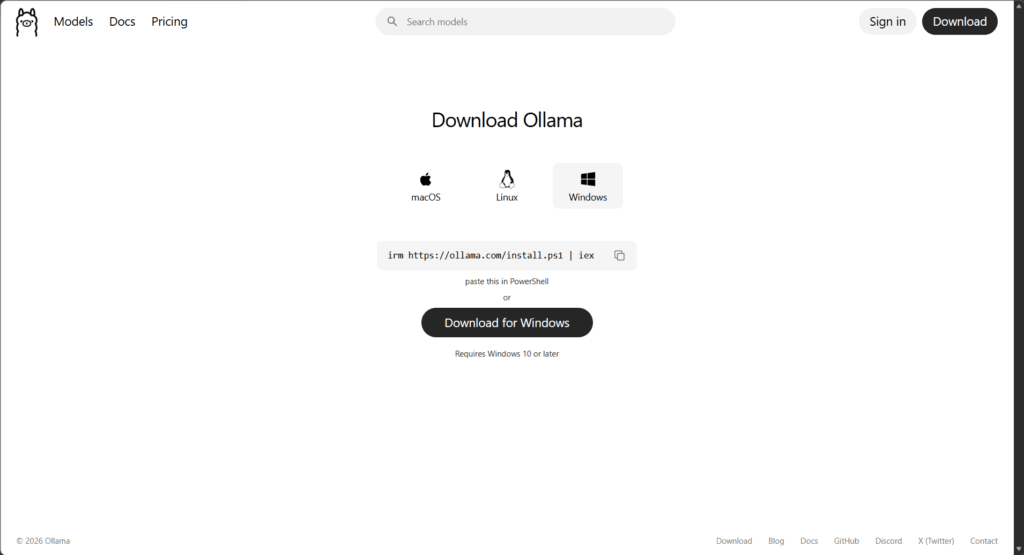
Installing Ollama is straightforward on most platforms. You can obtain installers from the official project site, or use package managers where supported.
Typical installation steps:
- Download the installer for your OS from the Ollama website or repository.
- On macOS, you may use Homebrew if available: brew install ollama (check the official docs for the exact package name).
- Follow platform-specific instructions to install and grant necessary permissions.
After installation, verify the CLI is available:
ollama --helpThis should print usage information and a list of commands. If you see that, you’re ready to start pulling models.
Pulling and managing models
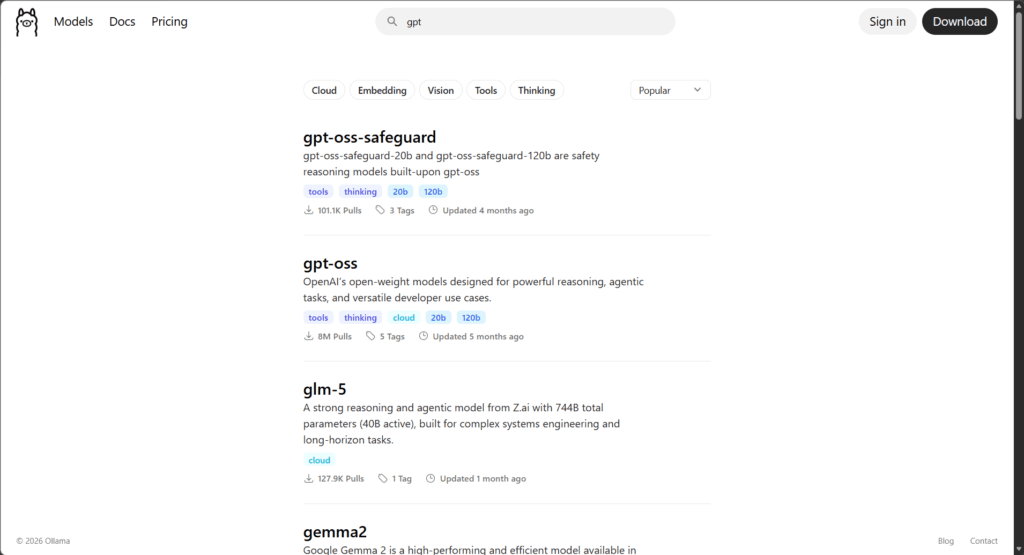
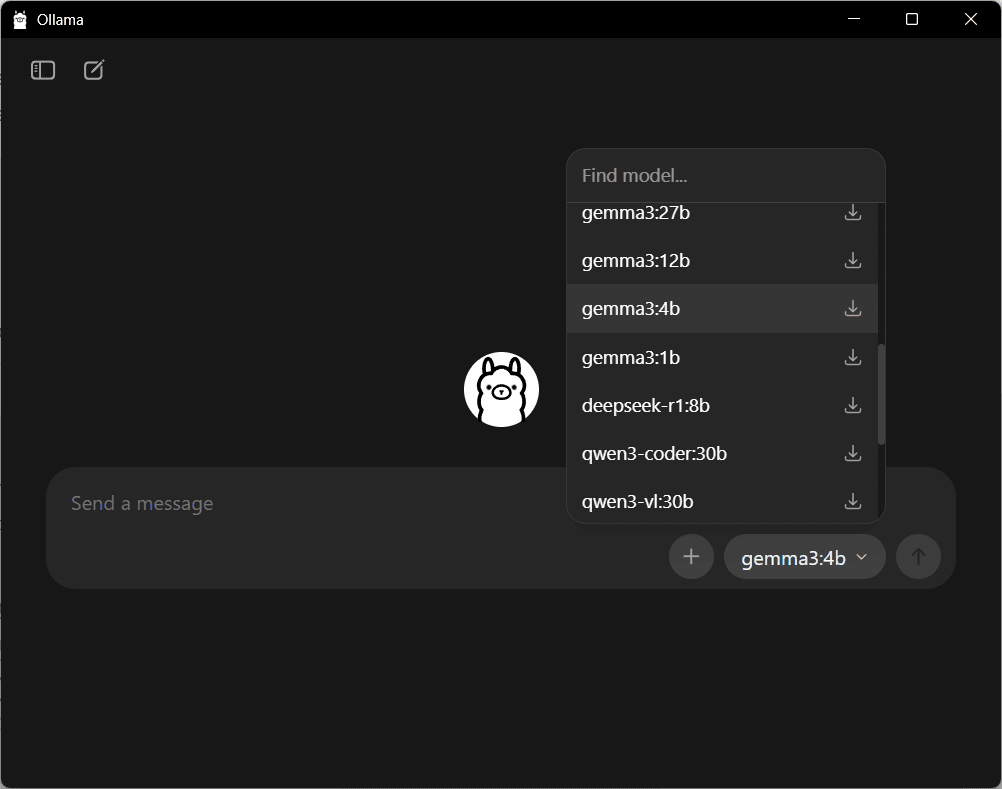
Ollama lets you download the LLM weights you need and store them locally. This is commonly called “pulling” a model.
Example workflow:
- Search or decide which model you want (consider size, license, and capabilities).
- Pull the model to your machine so Ollama can run it locally.
Typical commands allow you to list available models, pull a model, and view models installed on your machine. Use the CLI to manage versions and remove models you no longer need.
Running models with the CLI
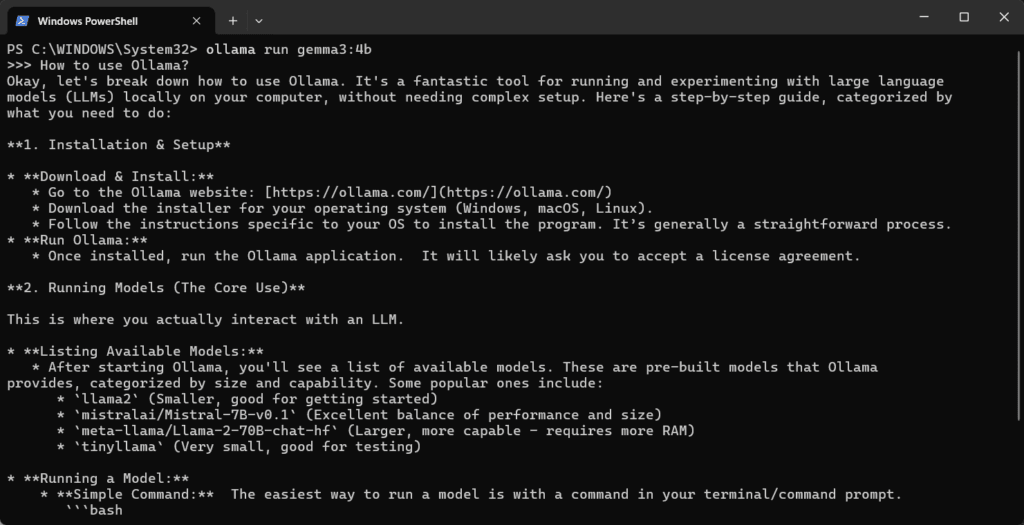
The Ollama CLI provides an interactive and scriptable way to run models. You can start a REPL-style session, send a single prompt, or run batch jobs.
Common interactions include:
- Starting an interactive session with a model for exploration.
- Sending a one-shot prompt and receiving generated text.
- Streaming outputs for long responses.
Using the CLI is useful during development and debugging because it removes network overhead and makes iteration fast.
Serving models: Local API and integration
Ollama can expose a local HTTP API so you can call models from applications in any language. This enables easy integration into web services, automation scripts, or chatbots.
A common integration pattern:
- Start Ollama’s server on a designated port.
- Send HTTP POST requests with JSON payloads containing your prompt and generation parameters.
- Parse the response and use it in your application.
If you prefer to work from Python, Node.js, or another language, use standard HTTP libraries (requests, fetch, axios) to call the local endpoint. This pattern keeps data on-premises and avoids external API costs.
Example: calling the local API (conceptual)
Below is a conceptual curl example. Check the Ollama docs for exact endpoint paths and fields if they change over time.
curl -X POST http://localhost:11434/api/generate
  -H "Content-Type: application/json"
  -d '{"model":"","prompt":"Write a concise summary of Ollama."}'
Replace with a model you’ve installed. Most SDKs or direct HTTP clients can handle streaming responses and additional options like temperature, max tokens, and stop sequences.

Prompting best practices
High-quality prompts greatly improve output. Use the following strategies when designing prompts for ollama-powered LLMs.
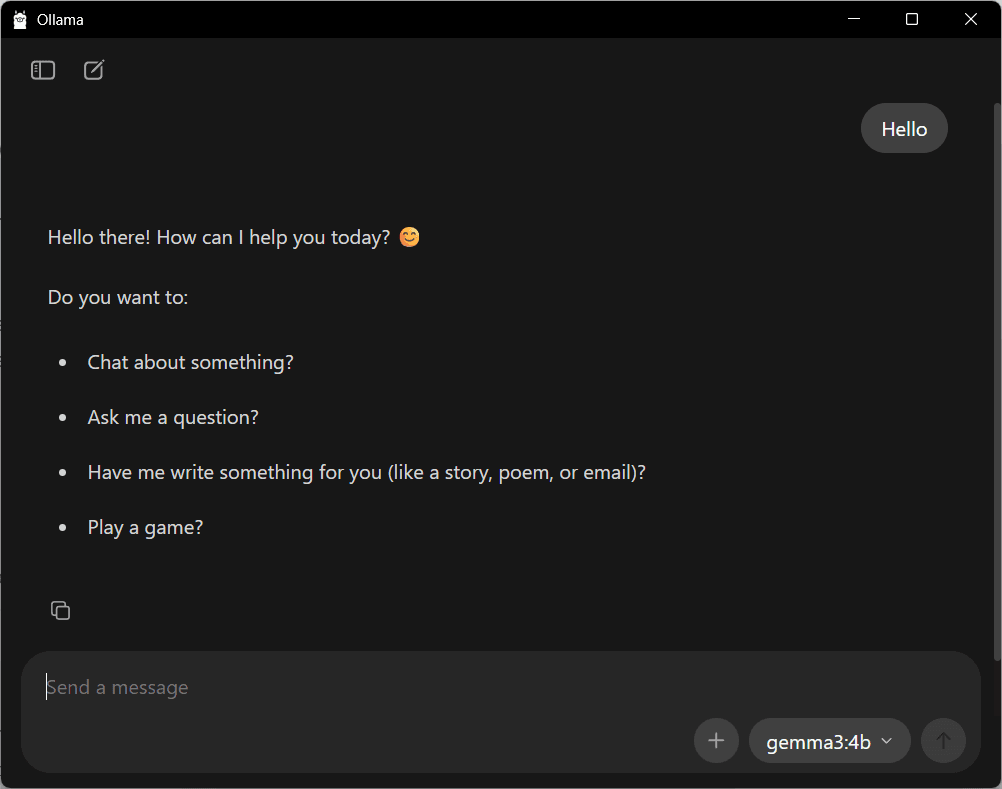
Be explicit about the task
Clearly state the role and output format. For example: “You are an experienced software engineer. Provide a concise 5-point checklist for…”.
Use examples
Providing input-output examples or a short template helps the model follow the desired pattern, especially for structured outputs like JSON or tables.
Control randomness
Adjust parameters such as temperature and top-p (when supported) to balance creativity and determinism. Lower temperature yields more consistent outputs.
Handle multi-turn conversations
For chat-style interactions, include system, user, and assistant messages to preserve context. Maintain conversation history as needed, but prune or summarize older messages to conserve memory.
Resource management and performance
Running LLMs locally can be resource intensive. Be mindful of memory, GPU, and disk usage when pulling and serving models.
Recommendations:
- Choose model sizes appropriate to your hardware (smaller models require less memory and CPU/GPU).
- Use GPU acceleration if available, this dramatically improves latency for large models.
- Monitor system metrics and configure swap or disk space to avoid crashes.
- Consider model quantization or optimized variants if offered, to reduce memory footprint and improve throughput.

Security, privacy, and compliance
One of the primary benefits of using Ollama to run ai models locally is improved data privacy. Data stays on your machine or private network unless you explicitly share it.
Still, observe best practices:
- Secure local endpoints with firewall rules or authentication when exposing them to other systems.
- Audit logs and data retention policies to ensure sensitive information is not inadvertently stored or logged.
- Verify model licenses and usage restrictions before deploying in production.

Troubleshooting and maintenance
If you run into issues, common troubleshooting steps include:
- Check that the Ollama service is running and that the CLI reports its status.
- Ensure you have sufficient disk and memory for the model you pulled.
- Examine logs for errors related to model loading, hardware drivers, or network bindings.
- Re-pull models if corrupted or if updates are available.
Regularly update the Ollama software to benefit from performance improvements, security patches, and updated integrations.
When to use Ollama versus cloud LLM APIs
Choose Ollama when privacy, offline operation, predictable cost, and lower latency are priorities. Use cloud APIs when you require the absolute latest models, managed scaling, or when you need access to specialized proprietary models that are not available to run locally.
A hybrid approach often gives the best balance: run routine or sensitive workloads locally and use cloud APIs for overflow, large-scale batch jobs, or cutting-edge models.
Conclusion
Ollama enables teams to run and serve LLMs locally with a straightforward CLI and API layer. By managing models on-premises, developers gain control over privacy, latency, and cost while integrating powerful ai capabilities into applications.
Start by installing Ollama, pulling a model that matches your hardware, and experimenting with the CLI. Progress to serving models via the local API and applying prompt-engineering best practices. Monitor resources, secure endpoints, and choose the deployment pattern that fits your needs.
With thoughtful setup and maintenance, Ollama can be a robust part of your AI infrastructure, enabling secure and performant language model applications.