


You opened your IDE, pulled up three browser tabs with documentation, and then tried to run a local AI model. Your laptop fan kicked into full speed, the screen froze for ten seconds, and the model loaded, slowly. Sound familiar?
Here is the thing most guides skip: the bottleneck is often not the model. It is the operating system sitting underneath it, quietly eating the RAM you thought you had.
This guide covers the best local LLMs for coding on an 8GB machine in 2026, but it also gets honest about something most articles ignore, your OS choice makes a bigger difference than the model you pick.
You Do Not Actually Have 8GB to Work With
When a laptop ships with 8GB of RAM, that number on the box is a ceiling, not a floor. Before you open a single app, memory is already spoken for.
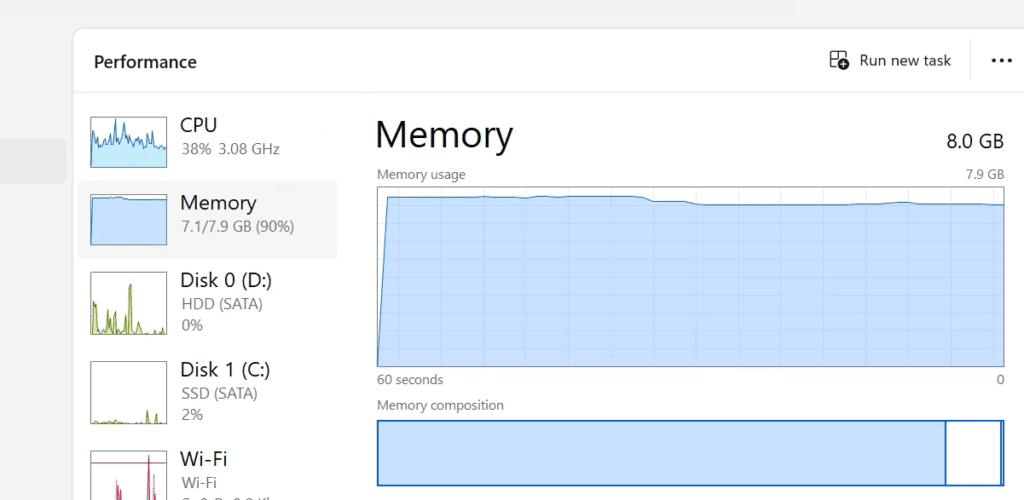
Windows 11 at idle eats somewhere between 3GB and 4GB. That includes background services, Windows Defender, telemetry processes, and the Desktop Window Manager. macOS is a little leaner but not dramatically so, typically landing around 2.5GB to 3GB at idle depending on which version you’re running and how many startup items you have.
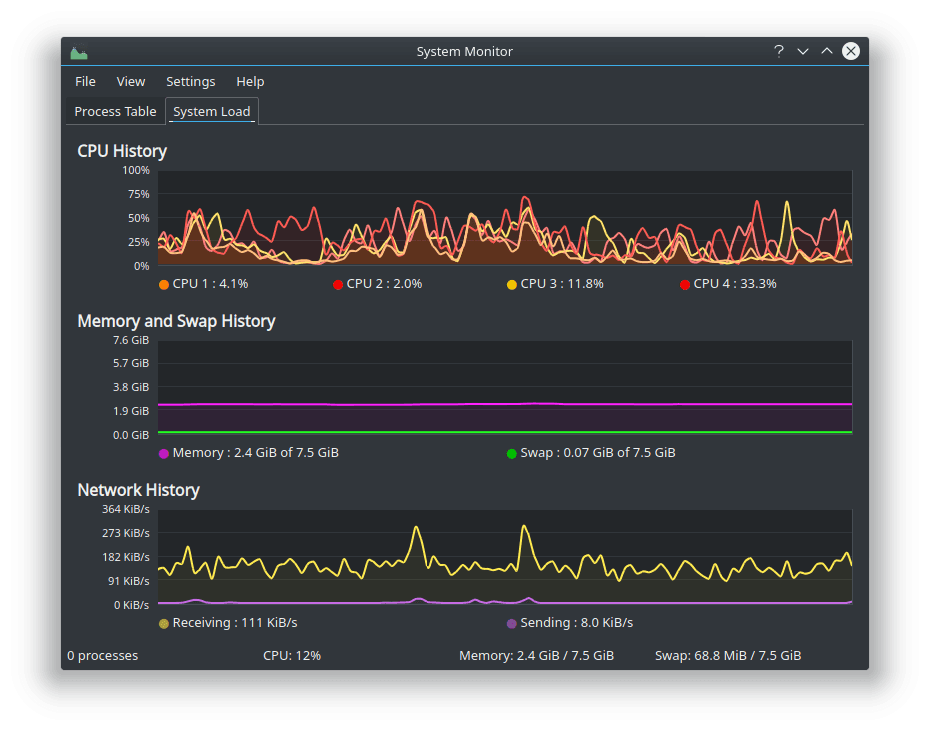
Linux is where things get interesting. A lightweight install of Linux Mint, Zorin OS Lite, or a minimal Ubuntu desktop idles at roughly 700MB to 1.2GB. That’s a real difference. On Windows you might have 4GB left over for everything else. On Linux that same machine has closer to 6.5GB to 7GB free.
For running local LLMs, that gap matters a lot.
Windows: The Comfortable Choice With a Real Cost
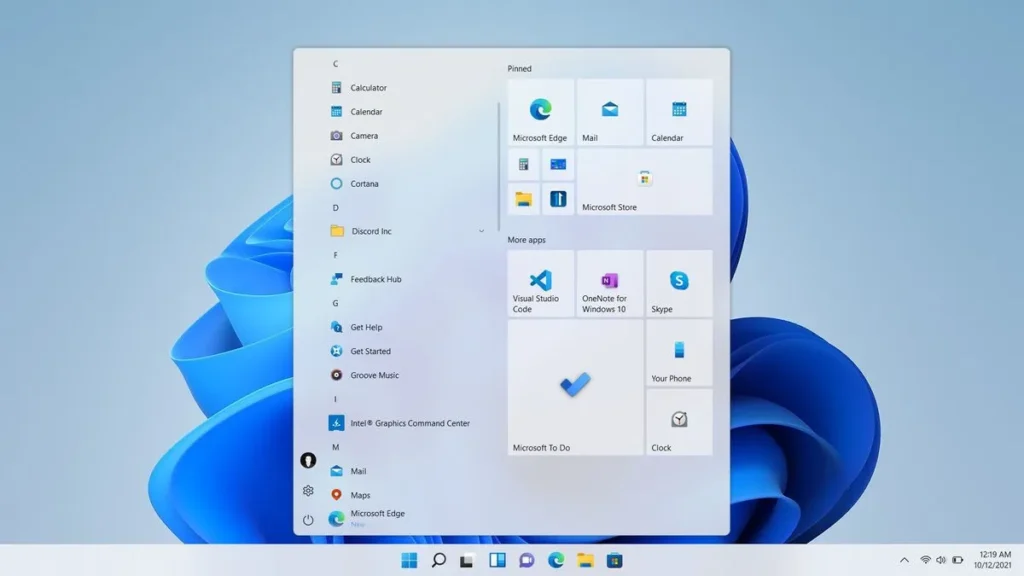
Most developers are already on Windows. The ecosystem is solid, driver support is excellent, and tools like LM Studio have polished Windows clients that handle GPU offloading with a few clicks. For someone who just wants to get started without touching a terminal, Windows is still the easiest path.
The downside is the memory tax. You are starting every session already behind. A 7B quantized model sitting at around 4.2GB of RAM plus Windows overhead puts you right at the edge of 8GB. Add VS Code and a couple of browser tabs and you will start seeing slowdowns or generation failures.
LM Studio on Windows also has a GPU offloading option that helps when things get tight. If your integrated GPU has shared VRAM, you can push some model layers there and free up system RAM. It works, but it is a workaround for a problem that Linux mostly avoids in the first place.
macOS: The Silent Wildcard
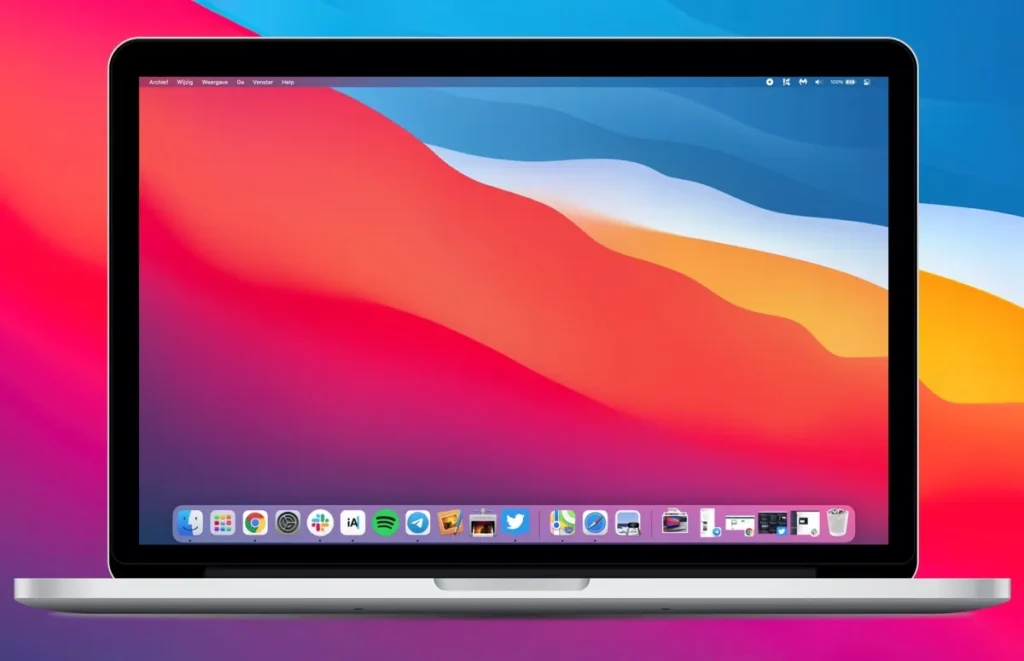
MacBooks with Apple Silicon are a genuinely different story. The unified memory architecture means RAM is shared between CPU and GPU, and Apple’s Metal framework lets models use that memory much more efficiently than a typical x86 laptop. An M2 MacBook with 8GB can run a quantized 7B model and still feel responsive in a way that Windows or Linux on the same spec cannot match.
If you are on an Intel Mac, that advantage disappears. Intel-based MacBooks behave more like Windows machines in terms of overhead and memory pressure, and macOS does not give you the same low-level control over background processes that Linux does.
The catch with Apple Silicon is price. You are not getting into that ecosystem for the cost of a budget laptop. If you already own one, great. If you are deciding between operating systems on the machine you have right now, macOS on Intel is probably your weakest option for local AI work.
Linux: More Free RAM, More Friction
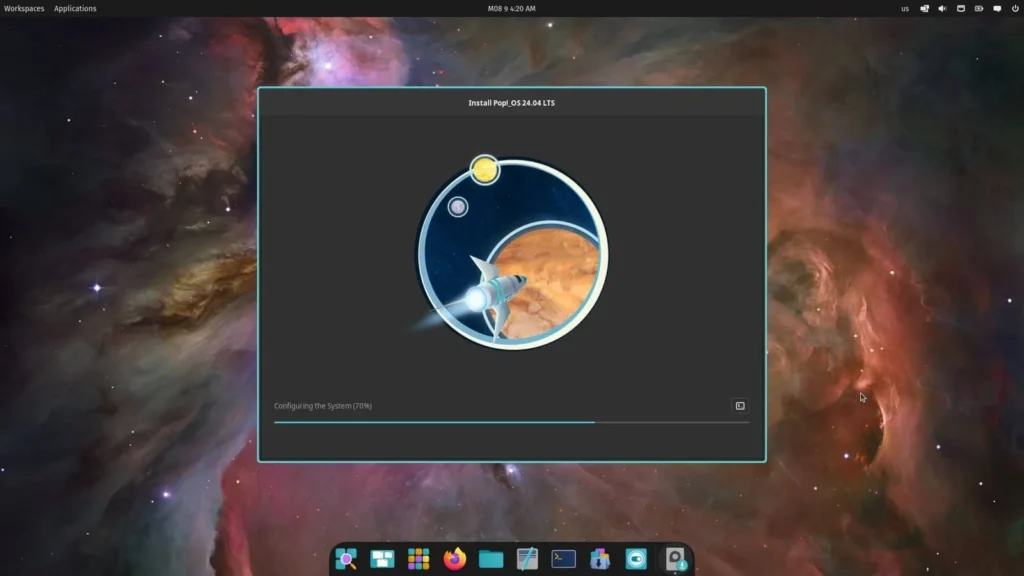
Linux is the honest recommendation for anyone who wants to squeeze the most out of limited hardware. The idle memory footprint is simply lower, the tooling around local AI (Ollama, llama.cpp, Open WebUI) treats Linux as a first-class citizen, and you have real control over what runs in the background.
Tools like htop or btop make it easy to kill processes you do not need. zRAM gives you compressed swap that works faster than disk-based swap. And when something breaks, the documentation for AI tools almost always shows Linux commands first.
The honest downside: setup takes more effort. Driver issues can surface, especially on laptops with Nvidia GPUs. Some tools have better Windows or Mac clients. And if you are not comfortable in a terminal, the learning curve is real.
A dual-boot setup is worth considering. Keep Windows for everything else, boot into Linux when you want to run models. You get the best of both without committing fully.
Which Models Actually Fit in 8GB
Once your OS is sorted, model selection comes down to one rule: stay between 3B and 8B parameters, and always go with a quantized version. Trying to load a 14B model on 8GB will push your machine into swap, and at that point you are waiting multiple seconds per token. That is not a workflow, that is a punishment.
– Qwen 2.5 Coder 7B (Q4_K_M)
The Q4_K_M quantized version lands at roughly 4.2GB of RAM and is widely regarded as the best overall coding model for this hardware tier in 2026. It handles Python, JavaScript, and Rust well. It understands project context, not just single-file snippets. Generation speed on a modern laptop CPU is fast enough to feel like a real coding assistant rather than a novelty.
– DeepSeek Coder V2 Lite
DeepSeek uses a Mixture of Experts architecture, which means the model only activates the parts of its network it actually needs for a given task. In practice this translates to fast responses and lower average memory pressure than a dense model of the same size. It is particularly strong at boilerplate generation and catching logic errors.
– Stable Code 3B
When you have too many things open and you need something that will not fight you for RAM, a 3B model is the right call. Stable Code 3B runs under 2GB, which means it plays nicely alongside a full development environment. It is not going to explain a complex algorithm to you, but for autocomplete and quick syntax fixes it is fast and reliable.
Getting Set Up in Three Steps
Step 1: Install Ollama or LM Studio
These handle the hard parts — memory allocation, model loading, and serving the model over a local API. Ollama is terminal-based and works great on Linux and macOS. LM Studio has a GUI and is usually the better starting point on Windows.
Step 2: Pull a quantized model
With Ollama, it is one command:
ollama run qwen2.5-coder:7bOllama picks an optimized quantization for your hardware automatically.
Step 3: Connect your editor
Install the Continue extension in VS Code and point it at your local Ollama or LM Studio endpoint. Your code stays on your machine, which also matters if you work under an NDA or handle anything sensitive.
A Few Things Worth Keeping in Mind
Keep your context window at 4096 or 8192 tokens. Feeding the model an entire large codebase at once does not improve the output much, but it does spike your RAM usage significantly.
Close Electron apps you are not actively using. Slack and Discord are notorious memory consumers. Closing them can free up a full gigabyte instantly.
If you are on Windows and using LM Studio, experiment with the GPU offloading settings. Pushing some layers to your integrated GPU’s memory can meaningfully reduce system RAM pressure.
The Bottom Line
An 8GB laptop is not disqualified from running local AI in 2026. The models have gotten smaller and smarter. The tooling has matured. But you will get the most out of that hardware by being deliberate about where your memory actually goes.
Windows works, and the tooling is friendly. macOS on Apple Silicon punches above its weight. Linux gives you the most room to work with if you are willing to deal with a bit more setup.
The model choice matters, but it is the second decision. Figure out your OS situation first and the rest gets a lot easier.