

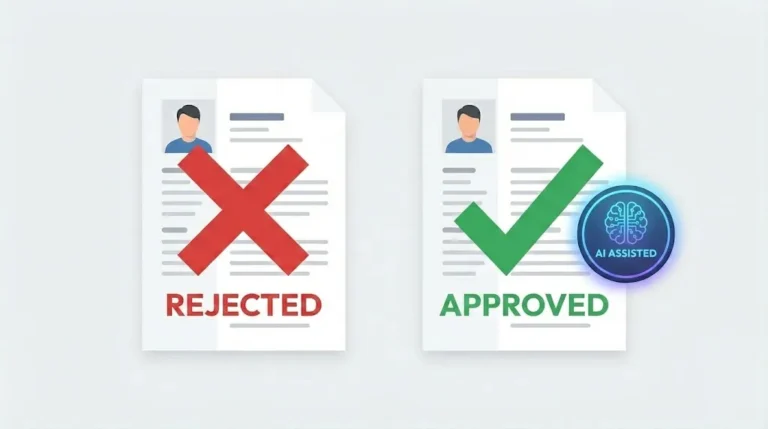
You searched for an ai resume scanner bypass for workday ats because your applications keep getting ghosted. It feels like shouting into a void. The reality is simpler and more strategic than you think.
There’s no magical hack that tricks the system. Workday’s AI is designed to filter, not to be fooled. But you can absolutely work with it (not against it) to get your resume to a human. The goal isn’t to bypass the scanner. It’s to pass it with flying colors.
How the Workday ATS Scanner Actually Works
Workday is one of the most common ATS platforms, used by over 75% of Fortune 500 companies. It doesn’t just store resumes; it actively parses and scores them. The system scans for specific, quantifiable matches to the job description. It’s not looking for creativity. It’s looking for keywords, skills, and a clear, machine-readable structure.
Thinking of it as a gatekeeper is accurate. But a gatekeeper you can learn the language of.
The core function is parsing: extracting text from your document and organizing it into fields (name, skills, experience). If your formatting confuses it, your information gets lost or misclassified. That’s an instant rejection. The key is to make the scanner’s job as easy as possible.
Here is the catch: it’s not about you. It’s about the software’s logic.
The Legitimate Strategy for ATS Optimization
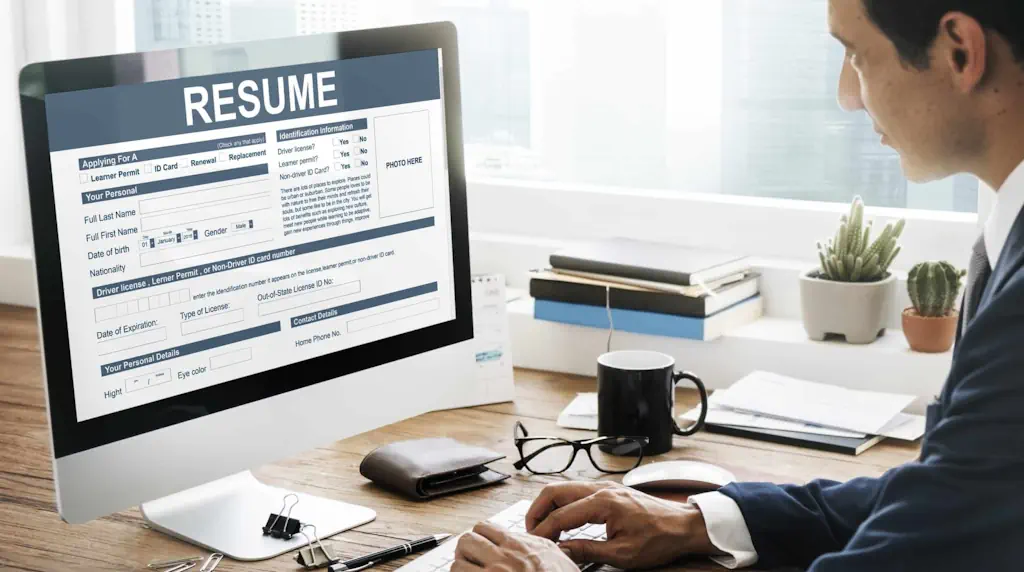
Forget about trying to find a secret backdoor. The only reliable “ai resume scanner bypass for workday ats” is perfect optimization. You make your resume so compliant that the system has no choice but to forward it.
This requires a three-part strategy: formatting for machines, keyword optimization, and using AI as your co-pilot, not your cheat code.
1. Format for the Machine First
Your beautifully designed Canva resume is your enemy. The AI scanner sees it as a confusing mess of images and text boxes. Stick to a boring, single-column, text-based PDF created in Microsoft Word or Google Docs.
Use standard headings like “Work Experience,” “Skills,” and “Education.” Avoid tables, headers, footers, and fancy icons. Use a simple font like Arial, Calibri, or Times New Roman. This isn’t about aesthetics; it’s about data extraction accuracy.
But wait, it gets better. This plain format also helps busy human recruiters find information faster.
2. Master Keyword Matching
This is the heart of the system. The scanner compares your resume’s text against the job description. Your match rate directly influences your score.
Don’t just list skills. Mirror the language of the job ad. If the description says “project management,” use “project management,” not just “managed projects.” Include both acronyms and full terms (e.g., “SEO (Search Engine Optimization)”).
Be accurate. Never claim a skill you don’t have. The scanner might pass you, but the human interviewer will catch you. Authenticity is non-negotiable.
3. Use AI the Right Way
AI is your optimization assistant, not your bypass tool. Use ChatGPT or Claude with a precise prompt. Feed it the job description and your current resume text (not a PDF of a designed resume, as the AI will struggle with formatting).

Ask it to: “Analyze this job description and suggest the top 10 hard skills and keywords I should include. Rewrite my bullet points to incorporate these keywords naturally while maintaining accuracy.” This creates a powerful, targeted document that speaks the scanner’s language.
A Step-by-Step Workflow to Beat the System
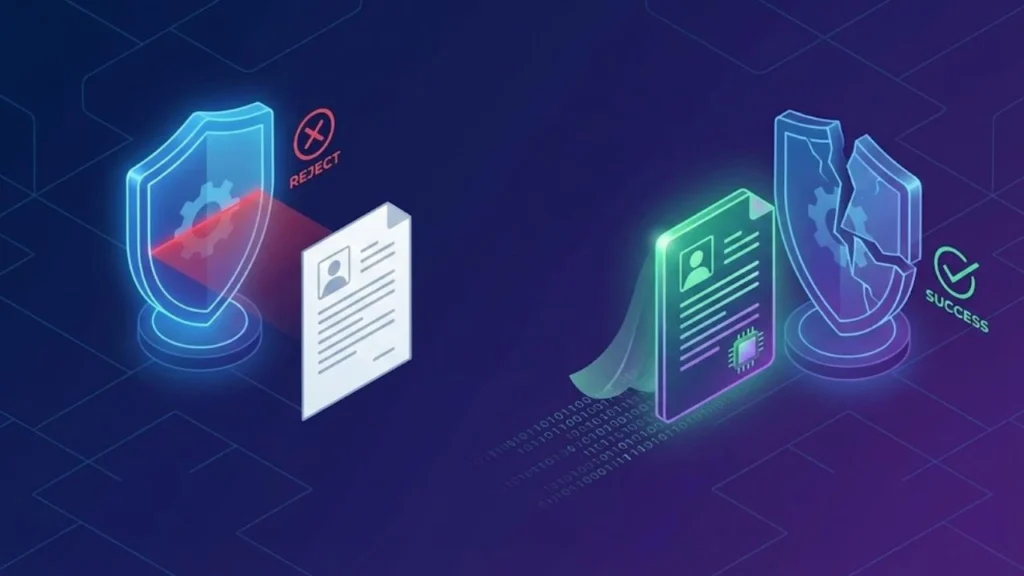
Here’s your actionable plan. Follow these steps in order.
1. Extract the Job Description: Copy the entire text of the job posting you’re targeting.
2. Run a Keyword Analysis: Paste the description into a free tool like Jobscan or Resume Worded. These tools will identify the most critical keywords and skills.
3. Build Your ATS-Friendly Draft: Open a blank document. Use a standard template. Write your content focusing on clarity and keyword placement.
4. Leverage AI for Refinement: Use this prompt with an AI tool: “I am applying for a [Job Title] role. Here is the job description: [Paste]. Here is my current resume text: [Paste]. Please rewrite my ‘Work Experience’ bullets to integrate the key skills from the job description, keep them achievement-oriented, and ensure they are ATS-friendly.”
5. Finalize and Save: Review the AI’s output for accuracy. Paste the final text into your document. Save the file as a PDF with a simple name: FirstName_LastName_Resume.pdf.
This process turns the AI resume scanner from a barrier into an ally.
Common Myths That Will Get You Rejected
Let’s bust some dangerous misconceptions about an ai resume scanner bypass for workday ats.
Myth 1: White text on a white background (keyword stuffing) works. Modern ATS like Workday can detect this. It’s considered spam and will get your application tossed immediately.
Myth 2: You need a .docx file, not a PDF. This is outdated. A text-based PDF is perfectly readable and looks more professional. Just ensure it’s created from a word processor, not an image editor.
Myth 3: More pages are better for keywords. Wrong. For most roles, keep it to one or two pages max. Relevance and conciseness are scored higher than sheer volume.
Myth 4: You can trick it with synonyms. The scanner is often programmed for exact keyword matching. Use the *exact* terminology from the job description whenever possible.
Falling for these myths is a surefire way to stay in the digital trash bin.
Essential Resources for AI Resume Scanner Bypass for Workday ATS
- Jobscan – The industry standard for ATS compatibility checking and keyword analysis.
- Resume Worded – Provides instant feedback on your resume’s ATS score and impact.
- Workday Career Site – Understanding the official platform can provide context for your application strategy.
- LinkedIn Profile to PDF – Use the “Save to PDF” feature on your profile to get a clean text base for AI analysis.
The bottom line is this: stop searching for a mythical bypass. Start executing a proven optimization strategy. Format simply, keyword precisely, and use AI intelligently to tailor every single application. This is how you turn the Workday ATS from a gatekeeper into a gateway.
Open a new document and apply this method to your next application today.